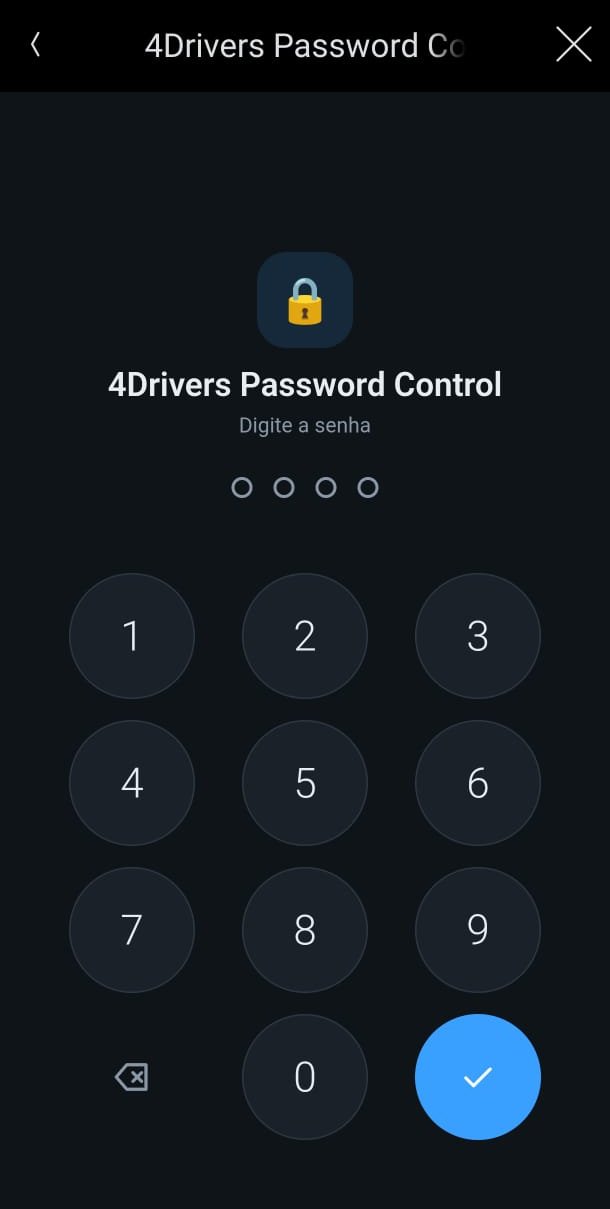
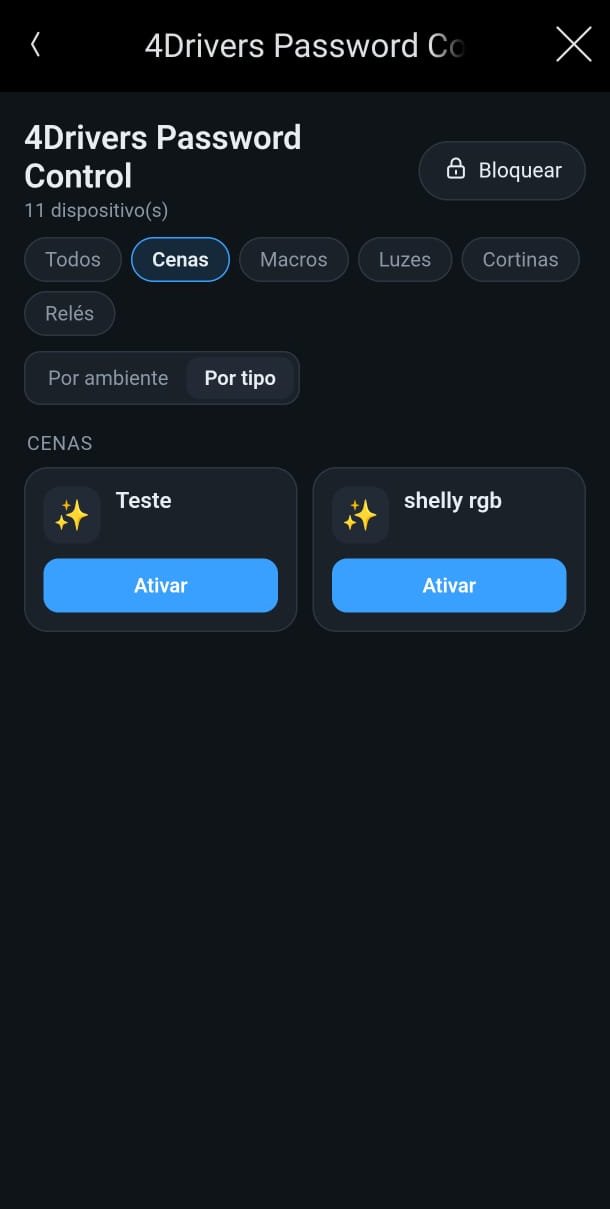
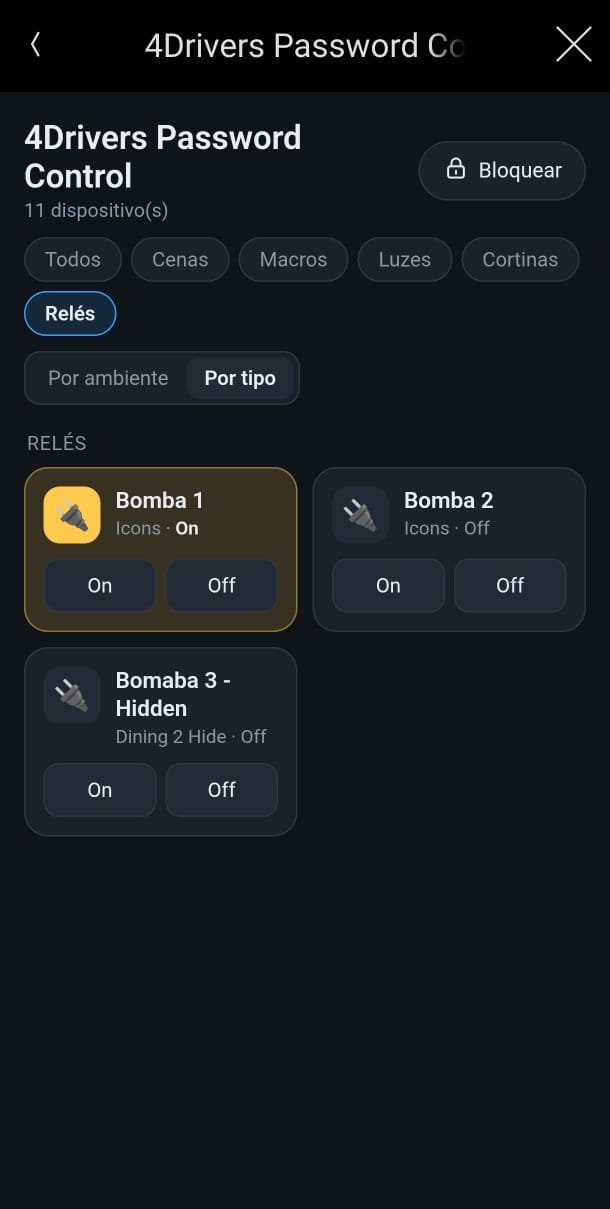
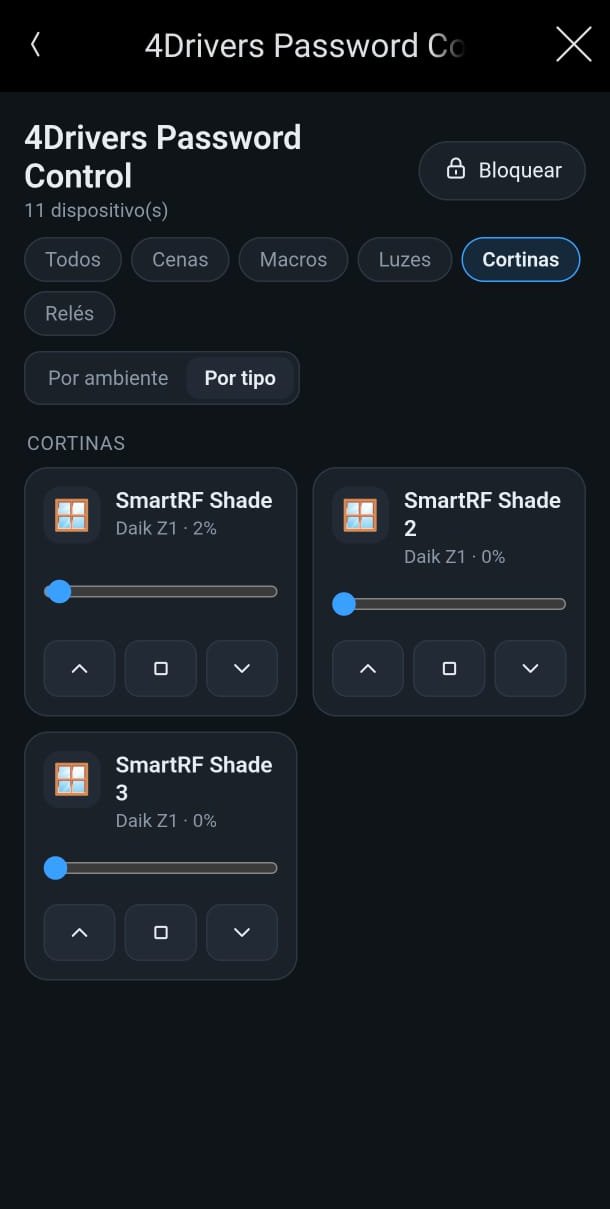
A Navigator button with a numeric keypad: only after the correct password does the user see and control the devices chosen by the installer — lights, advanced lighting scenes, macros, relays and shades.
| Type | Controls |
|---|
| Lights | Tap the card to turn on/off. Dimmers show a level bar (%). The state follows the light in real time. |
| Advanced lighting scenes | According to the Scene Button property: Activate only, Toggle only (turns the scene on/off) or Activate and Off. |
| Macros | Run. |
| Relays | The driver reads how each relay is configured in the project: a relay in Toggle mode shows On (closes the contact) and Off (opens the contact); a relay in Pulse mode shows only Pulse, using the pulse time set in the project. When it cannot be identified, all three buttons are shown. The card shows the current state (On/Off), following the relay; if the relay does not report its state, the screen shows the last command it sent. |
| Shades | Open, Stop, Close and, when the shade reports its position, a position bar (%). |
Changing the password immediately locks every screen that was unlocked. If Password is left empty, the screen stays locked until a password is set.
| Property | Description |
|---|
| Driver License / License Status | Driver license. Blank or "Trial" runs in evaluation mode for 5 days. The license is shared with the other identical drivers in the project. Without a valid license, the screen shows a notice and the controls are not unlocked. |
| Cloud Status / Automatic Updates | Only in the version distributed through DriverCentral. |
| Language | Portuguese / English / Spanish. Language of the screen and messages. |
| Interface Theme | Regular (dark, colorful), Classic (dark, neutral tones, line icons) or Light (light background). |
| Icon | Navigator button icon: Lock Teal, Lock Dark, Shield, Keypad Light, Keypad Dark, Keyboard, Gold Key or Silver Key. |
| Screen Title | Title at the top of the screen. Blank uses the driver name in the project. |
| Password | Numeric password, 2 to 8 digits. |
| Auto Lock (seconds) | Idle time before returning to the keypad (0 = only locks when leaving the screen or with the Lock button). |
| Wrong Attempts Before Lockout | Wrong passwords in a row before the keypad is blocked (0 = no lockout). |
| Lockout Time (seconds) | How long the keypad stays blocked. |
| List Lights / List Relays / List Blinds | Devices shown on the screen. List Relays accepts the various Control4 relay types: generic relay, gate, garage door, door lock, pump, radiant floor, fountain, fireplace, fan, sprinkler and others. |
| Add or Remove Lighting Scene / Add or Remove Macro | Adds or removes scenes and macros from the screen. |
| List Advanced Lighting / List Macros | Chosen scenes and macros. "(?)" marks an item that no longer exists in the project. |
| Scene Button | Activate (Activate button), Toggle (Toggle button, turns the scene on/off) or Activate and Off (Activate and Off buttons). |
| Relay Buttons | Auto (follows each relay's configuration in the project), On and Off, Pulse or All (forces the buttons for every relay). |
| Relay Pulse (ms) | Pulse duration when the relay does not report its own pulse time. |
| Devices Selected | Summary of the items on the screen. |
| Driver Version / Message | Installed version and latest driver status. |
| Debug Mode | Off / Print. Use Print for diagnostics only. |
| Developer Restricted / Developer Command | Support use only. |
| Symptom | What to check |
|---|
| "No password has been set" | Fill Password with 2 to 8 numbers and check Message. |
| License notice | Check License Status, enter the license and make sure the controller has internet access. |
| Scene or macro not available to choose | Use Refresh Scenes and Macros and read the result in Message. |
| Light without level bar | It is an on/off circuit (no dimmer): the screen shows on/off only. |
| Shade without position bar | The shade does not report its position; the buttons still work. |
| Screen goes back to the keypad by itself | That is Auto Lock (seconds); increase the time or use 0. |