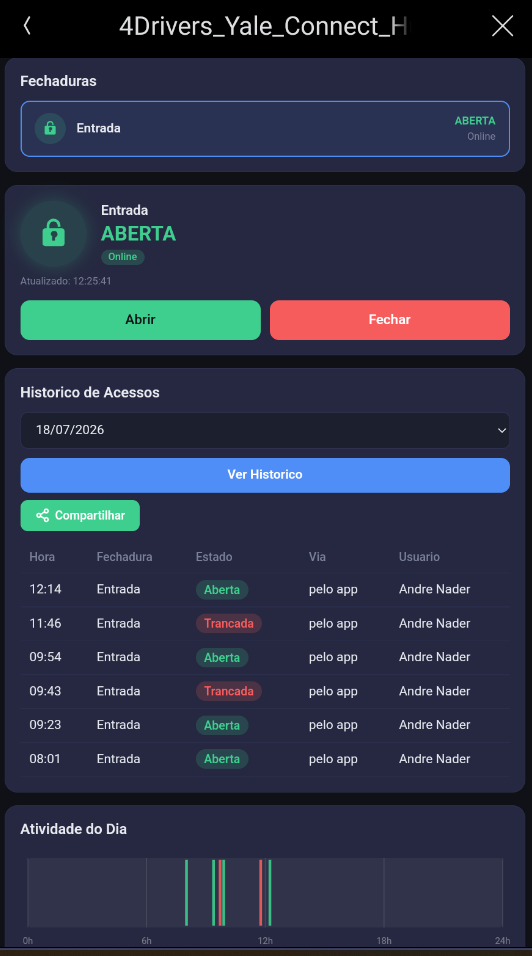
The 4Drivers Yale Connect Hub driver integrates the Yale Connect Brazil (ASSA ABLOY) platform with the Control4 system. It manages cloud authentication, synchronizes locks registered to the account, and communicates with individual lock drivers (4Drivers Yale Connect Lock) installed in the project.
Authenticates against the Yale Connect Brazil API using email and password
Automatically synchronizes the list of locks on the account
Forwards open and close commands to each individual lock
Retrieves and displays access history with a daily activity chart
Provides a responsive HTML interface on any Control4 Navigator
Fires Hub Online and Hub Offline events based on API availability
HTML Interface
Accessible from any Control4 Navigator — physical touchscreen, iOS/Android app, and browser.
Full interface with lock list, status panel, access history, and daily activity chart
Section
Description
Locks
Lists all visible locks with state (Locked/Unlocked) and Online/Offline indicator
Status Panel
Details for the selected lock: name, state, battery alert, Lock and Unlock buttons
Access History
Events by date: time, lock, state, access method, and user
Activity Chart
Visual timeline from 0:00 to 23:59 — green bars (unlocked) and red bars (locked). Hover shows exact time.
Share
Exports the history as text for sharing or copies it to the clipboard
Requirements
Active Yale Connect Brazil account with at least one lock registered in the app
Locks added and working normally through the Yale Connect app
Control4 OS 3.0.0 or higher
Driver 4Drivers_Yale_Connect_Lock.c4z available in the Composer drivers folder (installation in the project is done automatically by List Locks)
Controller with internet access (direct communication with the Yale API)
Properties
Yale Connect User Data
Property
Type
Default
Description
Email
String
—
Login email for the Yale Connect Brazil account
Password
Password
—
Yale Connect account password (masked field)
Icon Type
List
Yale
Icon displayed on the Navigator
Interface Preferences
Property
Type
Default
Description
Add Control4 Lock Driver
List
Yes
Yes: automatically adds the Control4 door lock proxy when a Lock driver is first connected. No: skips that step (use when the proxy already exists in the project).
Language
List
Portuguese
Language for the HTML interface: Portuguese, English, or Spanish
Driver License
Property
Type
Default
Description
License Key
String
Trial
License key provided by 4Drivers. Use Trial for evaluation.
Validacao
String
auto
License status — filled in automatically (read-only)
Developer Use
Password
—
Reserved for 4Drivers use
Driver Info
Property
Type
Default
Description
Debug Mode
List
Off
When On, displays hub-to-lock driver traffic in the Composer log. Disable after commissioning.
Status
String
—
Current driver state: authenticated, error, offline (read-only)
Driver Version
String
—
Installed driver version (read-only)
Actions
Action
When to use
List Locks
Synchronizes locks from the Yale account and detects installed Lock drivers. Run whenever you add a new lock to the app or install a new Lock driver.
Login
Authenticates with the configured credentials and runs the synchronization. Use on first setup or after changing the password.
Force Poll
Re-authenticates and refreshes the state of all locks. Useful to force an immediate update.
Get Status Fechaduras
Queries the current state without re-authenticating — uses the token already obtained.
Get Access History
Fetches the access history for the current day.
Events
Event
When it fires
Hub Online
Communication with the Yale API has been restored after an offline period
Hub Offline
The driver detected a communication failure with the Yale API
Use these events in programming to notify the end user when the connection to the Yale cloud is lost or restored.
Step-by-Step Setup
1 — Add the Hub driver to the project
Copy 4Drivers_Yale_Connect_Hub.c4z to the Composer drivers folder Windows: C:\Users\[user]\Documents\Control4\Drivers\
In Composer Pro, search for 4Drivers Yale Connect and drag the 4Drivers Yale Connect Account driver into the project
2 — Enter credentials
Open the driver's Properties tab
Fill in Email and Password with the Yale Connect account details
Save (File > Save) — the driver detects the credentials and logs in automatically
Wait a few seconds and check the Status property — it should show Authenticated — X lock(s)
If an authentication error appears, confirm the email and password by logging into the Yale Connect app on your phone. You can also trigger login manually via Actions > Login.
3 — Install the lock driver
Copy 4Drivers_Yale_Connect_Lock.c4z to the Composer drivers folder
The lock driver does not need to be added manually to the project. The List Locks action automatically creates and configures one driver instance for each lock found in the Yale account.
4 — Synchronize locks
In the Hub driver's Actions, click List Locks
The driver automatically creates a Lock driver for each account lock, already linked and configured with the correct ID
Check the Status property for the count of detected locks
5 — Configure each Lock driver
Open the Properties of the automatically created Lock driver
Adjust Lock Name Selected to a user-friendly name if desired
Set Visible on Interface: Yes (shows in UI) or No (hidden — useful for service or private area locks)
6 — Configure Navigator visibility
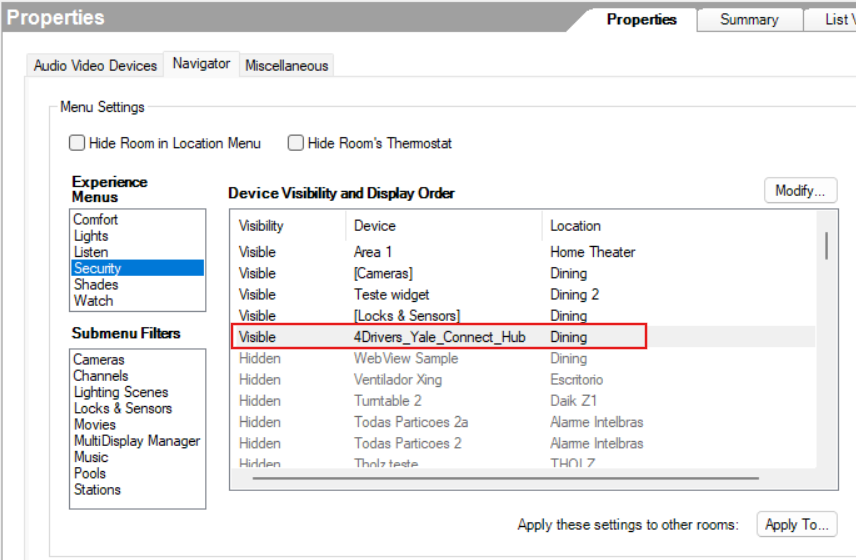
In the room properties, on the Navigator tab, set the 4Drivers_Yale_Connect_Hub driver as Visible in the desired Experience Menu — we recommend Security.
Navigator tab — driver set as Visible in the Security menu
7 — Verify the HTML interface
On the Navigator, access the Yale Connect item
Confirm that locks appear with the correct state (Locked/Unlocked)
Test the Lock and Unlock buttons
Access Access History and click View History to validate the records
8 — Finish
Make sure Debug Mode is set to Off
Save and publish the project
Setup complete. The driver will automatically renew the authentication token and keep lock states updated by polling.
Troubleshooting
Problem
Solution
Login error / Invalid token
Confirm email and password in the Yale Connect app. Click Login in Composer.
Locks not appearing in the interface
Run List Locks. Verify that the Lock drivers are bound to the Hub.
Lock appears but does not respond
Check the Online/Offline indicator. If Offline, the physical Yale hub may have lost internet connectivity.
History shows no events
Check if the date has activity in the Yale app. History is fetched in real time from the cloud.
Technical Information
Item
Value
Protocol
HTTPS — Yale Connect Brazil API
Authentication
Bearer Token with automatic renewal
State polling
Automatic polling
Hub-lock communication
Control4 virtual binding (ID 100, class 4d_Yale_Connect)
Persistence
Token, IDs, and lock map in PersistData — survives reboot